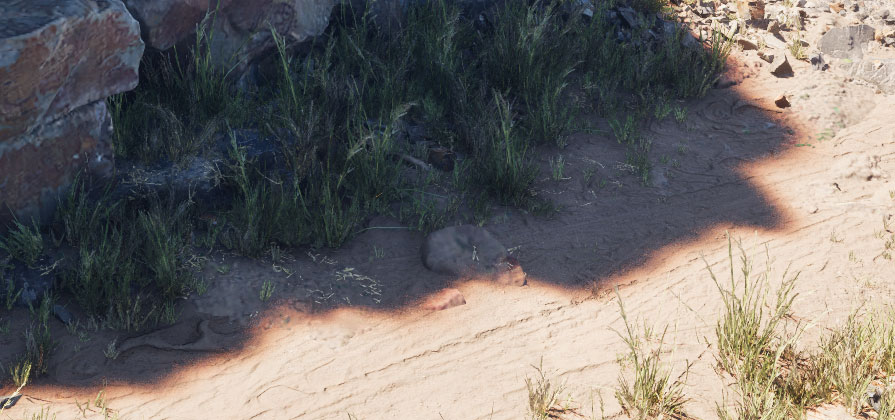
Colored Shadow Penumbra
Some time ago I saw this effect implemented by Romain Durand on a social media post where the penumbra regions of a light’s shadows would get additional color, known as Colored Penumbra or Colored Shadow Terminator. I really liked the effect and took a stab at it, and now I’m making it available. If you’re curious this Medium article by Shahriar Shahrabi goes through some of the theory.
There’s different ways to go about an implementation and I’ve decided to edit the Engine Shaders for this which (like everything) has pros and cons:
- It’s easy, no need to guess which values correspond to light or shadow (as you would with a PostProcess solution) which can be painful with Lumen or day/night cycles
- Works with all light types
- The implementation is extremely cheap
- The color saturation is only configurable across the board (not per light or per scene)
- It needs wide penumbras for the effect to be visible
- The implementation is only for Dynamic Lights, not Baked
We’re only editing the engine shaders but not the engine itself so we can stick to the Launcher version, as I’ve gone more in detail in my previous post about Editing the Engine Shaders so make sure you read it to understand what that entails.
Implementation
If you’re using Substrate open the Engine\Shaders\Private\Substrate\SubstrateDeferredLighting.ush file:
At line 190 (in UE 5.7) find the following code:
float3 SpecularLuminance = BSDFEvaluate.IntegratedSpecularValue * LightData.SpecularScale;
and right after that add the following:
			// Colored shadow penumbra - Start
			const float PenumbraSaturation = 4.0f; // configure this to your liking (1.0 means no change)

			float3 LuminanceFactors = float3(0.3f, 0.59f, 0.11f); // Luminance factor for desaturation
			float3 PenumbraColor = dot(DiffuseLuminance, LuminanceFactors); // Desaturate
			PenumbraColor = lerp(PenumbraColor, DiffuseLuminance, PenumbraSaturation); // Apply saturation (inverse desaturation)
			DiffuseLuminance = lerp(DiffuseLuminance, PenumbraColor, 1.0f - BSDFShadowTerms.SurfaceShadow); // Blend
			// Colored shadow penumbra - End
If you’re not using Substrate open the Engine\Shaders\Private\DeferredLightPixelShaders.usf file:
At line 397 (in UE 5.7) find the following code:
OutColor += Radiance;
and right after that add the following:
		// Colored shadow penumbra - Start
		const float PenumbraSaturation = 4.0f; // configure this to your liking (1.0 means no change)

		float3 LuminanceFactors = float3(0.3f, 0.59f, 0.11f); // Luminance factor for desaturation
		float3 PenumbraColor = dot(OutColor.xyz, LuminanceFactors); // Desaturate
		PenumbraColor = lerp(PenumbraColor, OutColor.xyz, PenumbraSaturation); // Apply saturation (inverse desaturation)
		OutColor.xyz = lerp(OutColor.xyz, PenumbraColor, 1.0f - SurfaceShadow); // Blend
		// Colored shadow penumbra - End
Save the shader file, go back to Unreal and press Ctrl + Shift + ., then go make some coffee while it recompiles shaders.
That’s it. I did say it was easy :)
Here’s some comparison shots with and without colored penumbra, shown on a couple of scenes from Quixel:
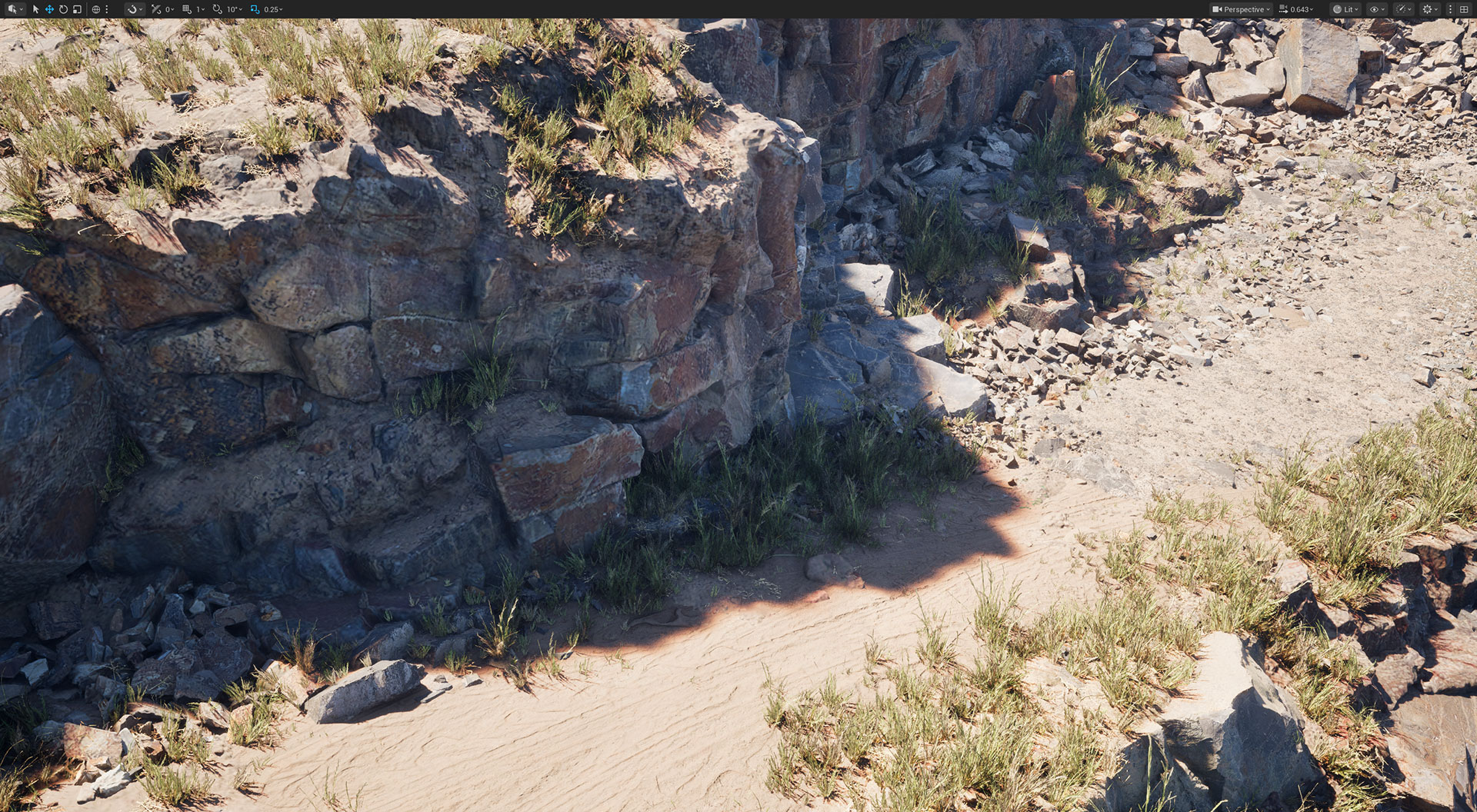
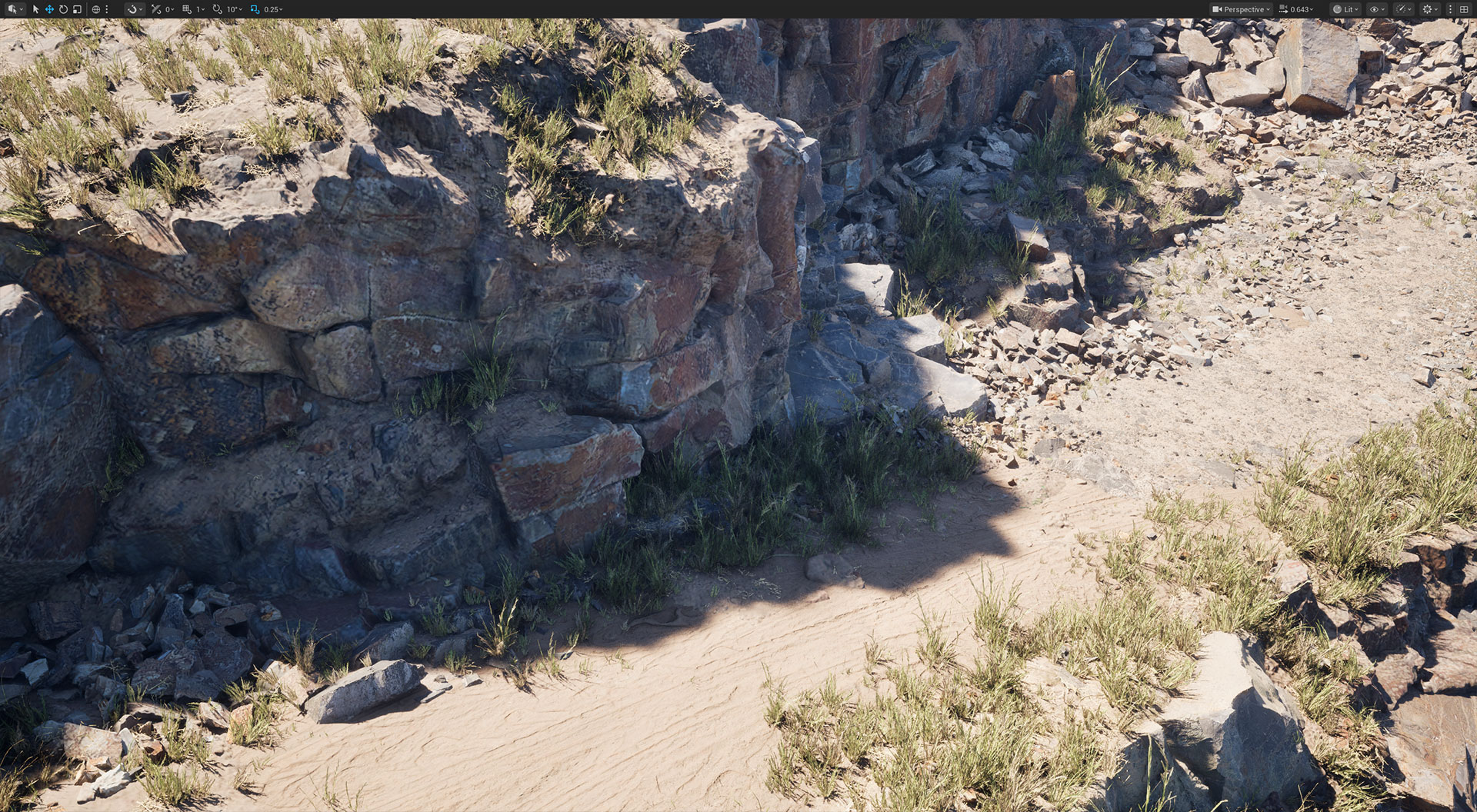
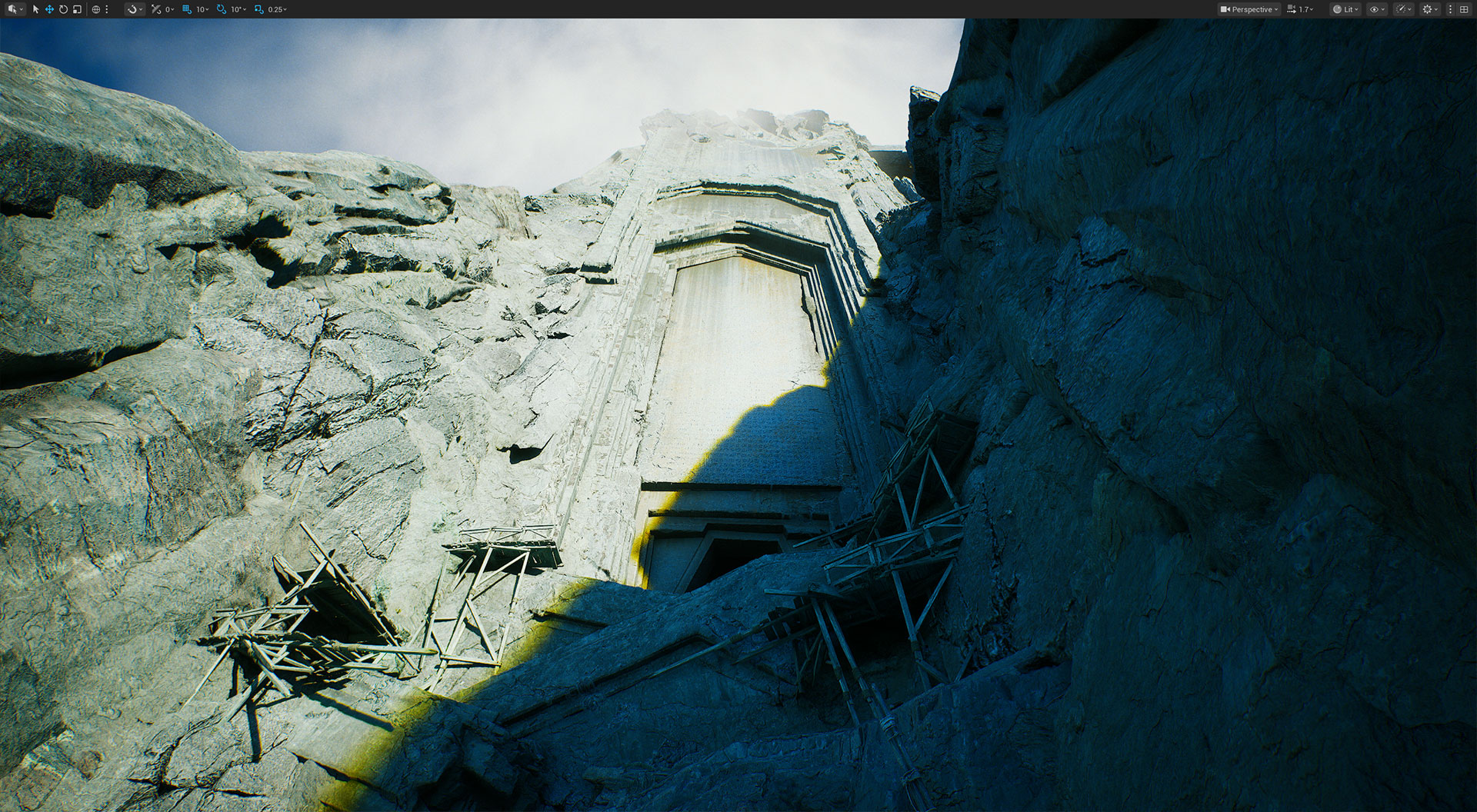
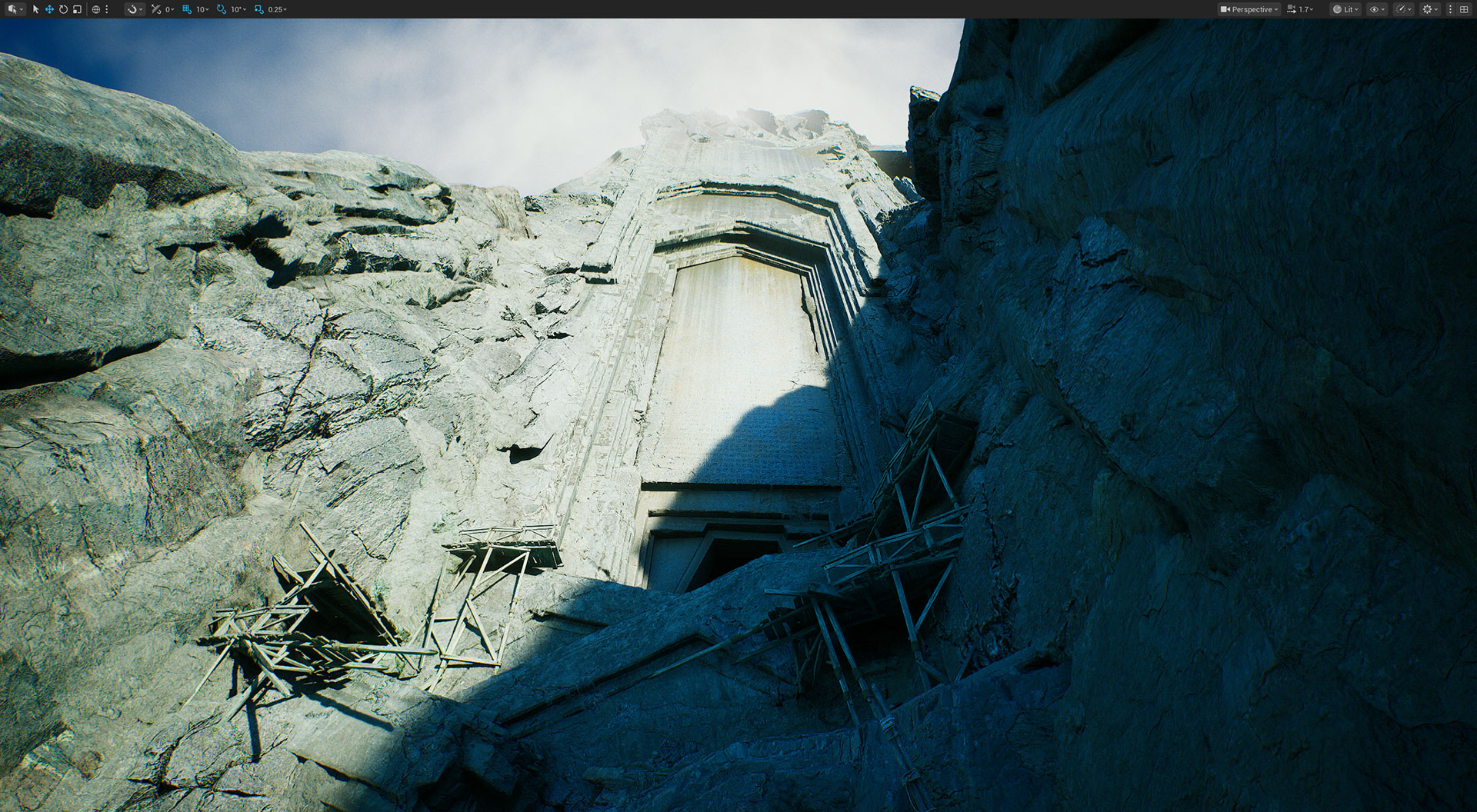
The effect is quite strong in these comparison shots for display purposes, and you’ll probably want to configure the PenumbraSaturation value to be lower. Also as you can see in the code this implementation alters the surface color to be more saturated, so note gray or fully-saturated surfaces will not have any effect.
Comments?
If you have any comments or questions feel free to reply to the relevant Twitter post, Bluesky post, ArtStation post or LinkedIn post.